Invoices Overview
The Invoices feature is ClientCove's built-in billing system — line-item invoices with tax and discount, branded PDF generation, automated email delivery, Stripe-powered card payments, recurring billing schedules, and an audit trail of every status change.
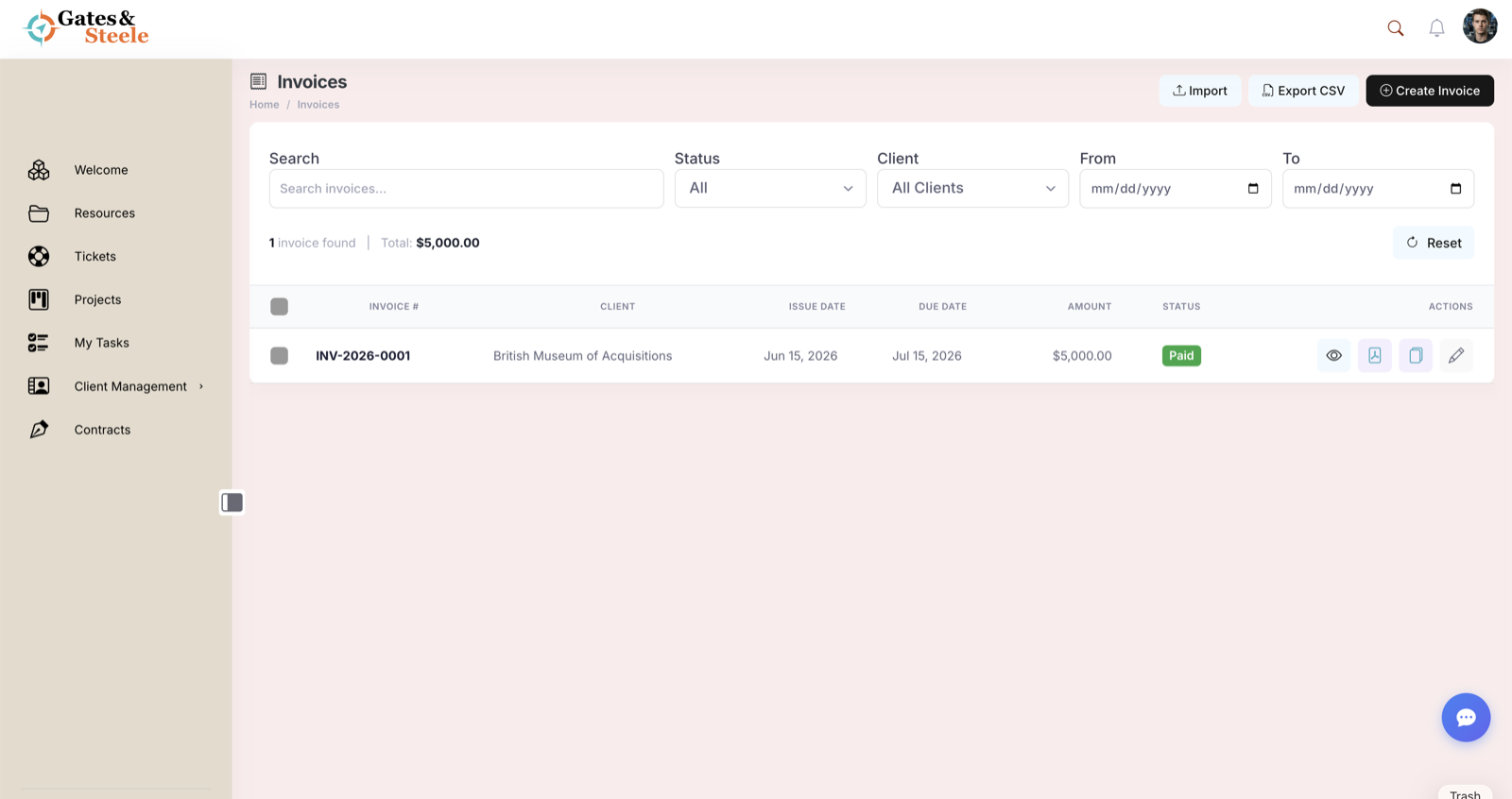
The Invoices list with status badges and Stripe-backed payment state.
What Invoices Is
A complete invoice workflow that handles:
- Creating invoices with line items, quantities, unit prices, taxable flags, tax rate, discounts, and currency
- Generating PDFs with your company branding, logo, payment instructions
- Sending emails with the invoice HTML inline + PDF attached
- Collecting payments via Stripe (one-off card payments or recurring subscriptions)
- Tracking status through Draft → Sent → Viewed → Paid (or Overdue / Cancelled)
- Automating recurrence — set monthly / quarterly / annual schedules, ClientCove generates the next invoice automatically
- Linking to portal records — orders, projects, contracts, products
Quick Glossary
| Term | What it means |
|---|---|
| Invoice | A invoice custom post type — line items + totals + status |
| Line Item | One row on the invoice — description, details, quantity, unit price, taxable flag |
| Subtotal | Sum of line items before tax and discount |
| Tax Rate | Percentage applied to taxable line items |
| Tax Amount | Calculated tax (auto-derived from rate + taxable subtotal) |
| Discount | Fixed dollar amount subtracted from subtotal |
| Total Amount | Subtotal + Tax − Discount |
| Balance Due | Total Amount − payments received |
| Issue Date | When the invoice was issued |
| Due Date | When payment is expected |
| Status | Lifecycle state (Draft / Sent / Viewed / Paid / Overdue / Cancelled) |
| Recurring | Auto-generates invoices on a schedule (monthly / quarterly / annual) |
| Payment Intent | Stripe object representing a payment in progress |
| Webhook | Endpoint Stripe calls to notify ClientCove of payment events |
The Invoices Page
Open Invoices from the left sidebar (/invoices/). The page is a Vue.js app with these regions:
Top toolbar
- Page title with receipt icon
- Breadcrumb (Home → Invoices)
- Export CSV button (admin/editor) — exports the current filtered list
- Create Invoice button (admin/editor) — opens the create modal
Filters card
- Search — matches invoice number, client name, line-item description
- Status filter — All / Draft / Sent / Viewed / Paid / Overdue / Cancelled
- Client filter (admin only) — dropdown of clients
- Date range filter (issue date / due date)
- Sort — by invoice number, date, amount, due date, status
Table
Columns: Invoice #, Client, Issue Date, Due Date, Total, Status, Actions
Each row links to the single-invoice view. Bulk actions (mark paid, send, delete) appear when rows are selected.
Stats summary (admin)
At the top, summary cards show:
- Total invoiced this month
- Total paid this month
- Total outstanding
- Overdue count
Invoice Statuses
Statuses describe where an invoice is in its lifecycle:
| Status | Color | When it applies |
|---|---|---|
| Draft | Gray | Created but not sent |
| Sent | Blue | Email sent to client |
| Viewed | Light blue | Client opened the invoice page (auto-detected) |
| Paid | Green | Full payment received |
| Overdue | Red | Past due date, unpaid |
| Cancelled | Dark | Voided — no longer collectible |
Status changes are logged with timestamp + actor.
Auto-detection
Two transitions happen automatically:
- Sent → Viewed when the client first opens the invoice URL
- Sent → Overdue when the due date passes (via daily cron)
Other transitions (Draft → Sent, Sent → Paid, any → Cancelled) are explicit actions taken by admin/editor or triggered by Stripe webhook events.
The Invoice Lifecycle
Most invoices move through these stages:
- Create — admin builds the invoice: client, line items, tax, discount, due date, notes
- (Optional) Save as Draft — flag for revisions before sending
- Generate PDF — server-side rendering of the branded invoice
- Send — email with HTML body + PDF attachment to the client's billing contact
- View — client opens the invoice in the portal; status flips to Viewed
- Pay — client clicks Pay, enters card details, Stripe processes the payment
- Webhook — Stripe calls back, ClientCove marks invoice Paid, sends payment confirmation email
- (Optional) Recurring — for recurring invoices, the next occurrence is scheduled
If payment doesn't arrive by the due date, the daily cron flips the status to Overdue and (optionally) sends a reminder email.
For recurring invoices, the cycle repeats on the configured schedule — admin sets it up once, ClientCove handles the rest.
How It Connects to Other Features
Invoices integrate with several other portal features:
| Feature | Connection |
|---|---|
| Clients | Every invoice is bound to a client — visible in the Client Workspace's Invoices tab |
| Billing Contact | The client's designated billing contact receives invoice emails (see Contacts & Billing) |
| Orders | Invoices can be generated from a client order via the related_order field |
| Projects / Contracts | Linkable as related items for context |
| Email Designer | Invoice notification emails respect your custom email template if configured |
| Stripe | Payment processing — see Stripe Checkout & Payments |
Permissions Snapshot
| Capability | Who |
|---|---|
| View Invoices page (admin) | Administrator, Editor — sees all invoices |
| View own invoices (client) | Client users with client_billing role or designated billing contact |
| Create invoices | Administrator, Editor |
| Edit invoices (Draft only) | Administrator, Editor |
| Edit invoices (Sent and beyond) | Restricted — most fields locked once sent |
| Send invoice emails | Administrator, Editor |
| Mark as Paid (manual) | Administrator, Editor |
| Cancel invoice | Administrator, Editor |
| Pay invoice | Any client user with view access to the invoice |
| Configure Stripe | Administrator only |
| Set up recurring schedule | Administrator, Editor |
Subscriber-level users have no invoice access. Client users see only their client's invoices, scoped via the assign_to_client field.
Invoices is feature-gated. The feature must be enabled in Settings → Core Features. If disabled, the dashboard returns a "feature not enabled" notice and the per-client Invoices tab hides. For Stripe-powered payments, you also need Stripe API keys configured in Settings → Stripe — see Stripe Checkout & Payments for the full setup.