Tasks Overview
My Tasks is your personal to-do list inside ClientCove. It's a Google-Tasks-inspired interface that brings together manual tasks you type in, tasks auto-created from project cards, tasks pulled out of tickets, tasks built from chat messages, and tasks generated from inbound emails — all filterable, time-trackable, and shareable.
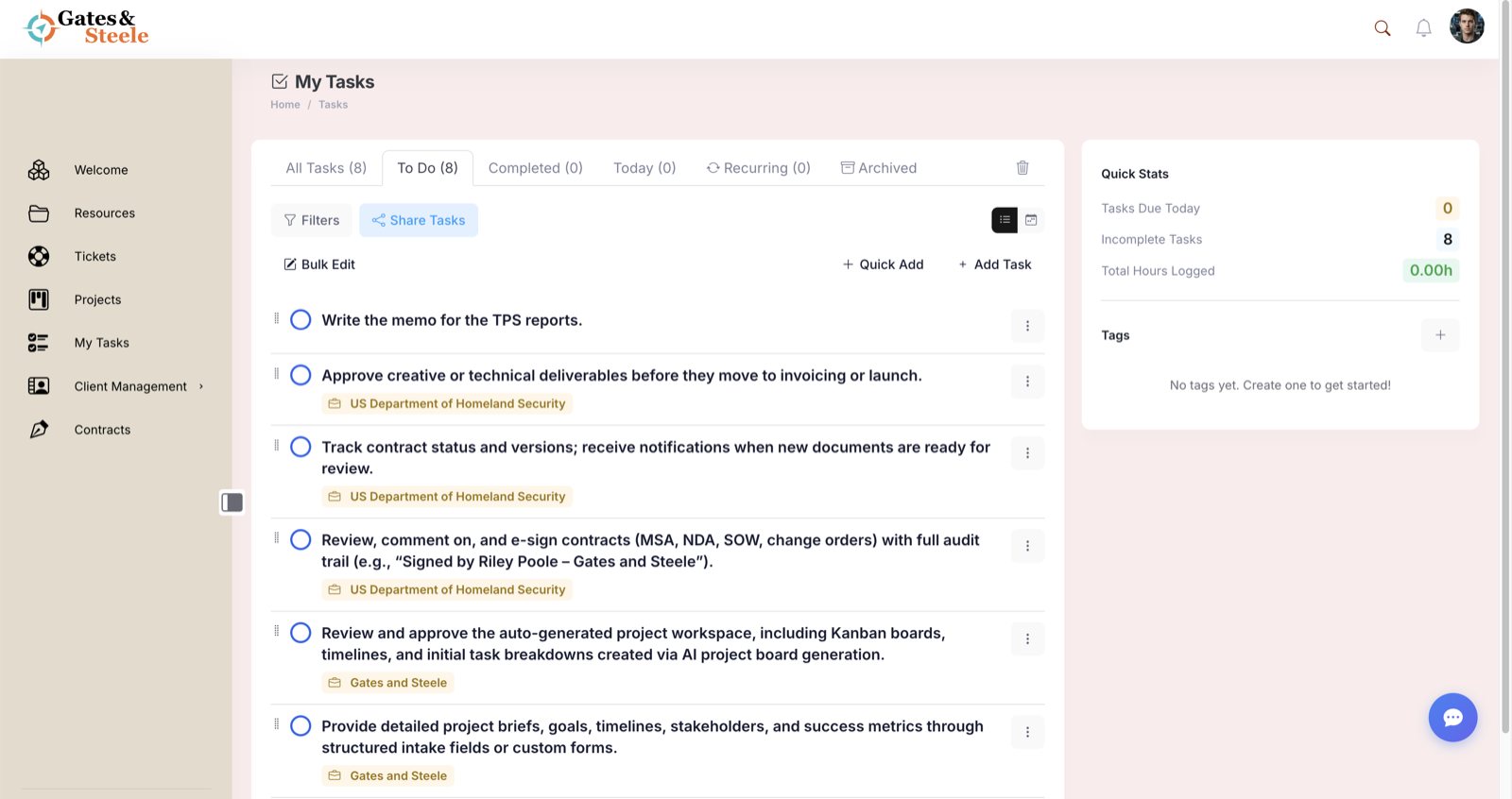
My Tasks — filter tabs, the task list, and quick stats on the right.
What My Tasks Is
Tasks are a custom post type (task) scoped per user. Every team member has their own My Tasks page; admins, editors, and representatives also see client-attributed tasks across the team for time-tracking purposes.
You reach it from Tasks in the left sidebar (/my-tasks/). The Tasks feature must be enabled for your portal in Settings → Core Features.
Quick Glossary
| Term | What it means |
|---|---|
| Task | One unit of work — a checkbox with a title, optional notes, due date, priority, recurrence, client, tags, and time spent |
| Manual task | Created by typing in the My Tasks UI |
| Project task | Auto-created from a project card via the project-task sync |
| Ticket task | Created via "Add as Task" on a ticket |
| Message task | Created from one or more lines of a chat message bubble |
| Email task | Created automatically from an inbound email matching a task route |
| Recurrence | Repeats the task on a schedule (daily, weekly, biweekly, monthly, quarterly, annual) |
| Time spent | Hours logged against a task — used for client time-tracking |
| Trash | Deleted tasks held for a configurable number of days before permanent removal |
| Archived | Completed or stale tasks moved out of the active list (auto after 45 days, or manually) |
The My Tasks Page
The page has three regions:
A. Toolbar (top)
- Page title with a check-square icon
- Breadcrumb (Home → Tasks)
B. Main task panel (left, ~⅔ width)
- Filter tabs — All Tasks / To Do / Completed / Today / Archived (managers) / Trash
- Filters bar — collapsible filter panel + Clear All
- Share Tasks button — opens the share/export modal for the current filtered list
- View toggle — List or Calendar
- Bulk Edit toggle — enables checkboxes for bulk operations
- Quick Add button — opens a quick-add modal
- Add Task button — inline new-task input
- The actual task list (or calendar grid)
C. Sidebar (right, ~⅓ width)
- Quick stats (Today, Incomplete, Total Hours)
- Time by Client (managers only)
- Tag manager + tag filter chips
Filter Tabs
| Tab | Shows |
|---|---|
| All Tasks | Every task in your active list |
| To Do | Incomplete tasks only |
| Completed | Tasks marked complete (still active, not yet archived) |
| Today | Incomplete tasks due today |
| Archived (managers) | Tasks archived manually or auto-archived after 45 days |
| Trash | Deleted tasks awaiting permanent removal |
The tab labels include live counts in parentheses.
List vs Calendar Views
A view toggle (right of the filters row) flips between two displays:
List view
- Vertical list of task rows
- Drag handle on the left to reorder (drag is enabled in the To Do filter only)
- Inline checkbox to mark complete
- Click the title to expand the inline editor (notes, dates, priority, recurrence, client, tags)
- Click the time-spent area on the right to log hours
Calendar view
- Week grid: one column per day Mon–Sun, plus a NO DATE column for unscheduled tasks
- Today's column is highlighted
- Drag tasks between days to reschedule (drag-and-drop sets a new due date)
- Click + Add task at the bottom of any column to create a task on that day
- Week navigation buttons: previous, Today, next
The view toggle is hidden in the Archived and Trash filters.
Anatomy of a Task
Each task carries:
| Field | What it does |
|---|---|
| Title | The task name — required |
| Notes | Free-form text, supports bullet points |
| Completed | True/false checkbox |
| Due date | Optional date the task is due |
| Priority | None / Low / Medium / High / Urgent |
| Recurrence | None / Daily / Weekly / Bi-weekly / Monthly / Quarterly / Annual |
| Client | Optional client assignment — drives time-tracking by client |
| Tags | Color-coded labels — multi-select |
| Time spent | Hours logged against the task (decimals OK, e.g. 1.25) |
| Date completed | Auto-populated when you mark the task complete |
| Related | Link to the source (ticket / project card / message) |
| Created from | manual, ticket, project_card, message, or email |
Sidebar Quick Stats
The right sidebar always shows:
- Tasks Due Today — count of incomplete tasks due today
- Incomplete Tasks — total open tasks
- Total Hours Logged — sum of
time_spentacross all your tasks
For admins, editors, and representatives, an additional Time by Client breakdown appears, showing hours logged per client across the team's tasks.
Below the stats: a Tags panel where you can create new tags, click any tag to filter, edit, or delete it.
Where Tasks Come From
Tasks reach My Tasks through five paths:
- Manual — typed directly into the inline Add Task input or the Quick Add modal
- From a project card — when project-task sync is enabled, assigning yourself to a card creates a task
- From a ticket — clicking "Add as Task" on a ticket opens an assignment modal
- From a message — clicking the task icon on a chat bubble extracts the message into one or more tasks (one per bullet line)
- From an inbound email — emails sent to a configured address create tasks automatically
Each origin is tracked in the task_created_from field so reports can break down where work originated. See Creating Tasks from Projects, Tickets & Messages for the full workflow on each.