Contracts Overview
The Contracts section is ClientCove's built-in agreement system. Upload a PDF, drop signature and initial fields onto it visually, send it to one or more recipients, collect signatures with OTP verification, and keep a tamper-evident audit trail of who signed what, when, and from where.
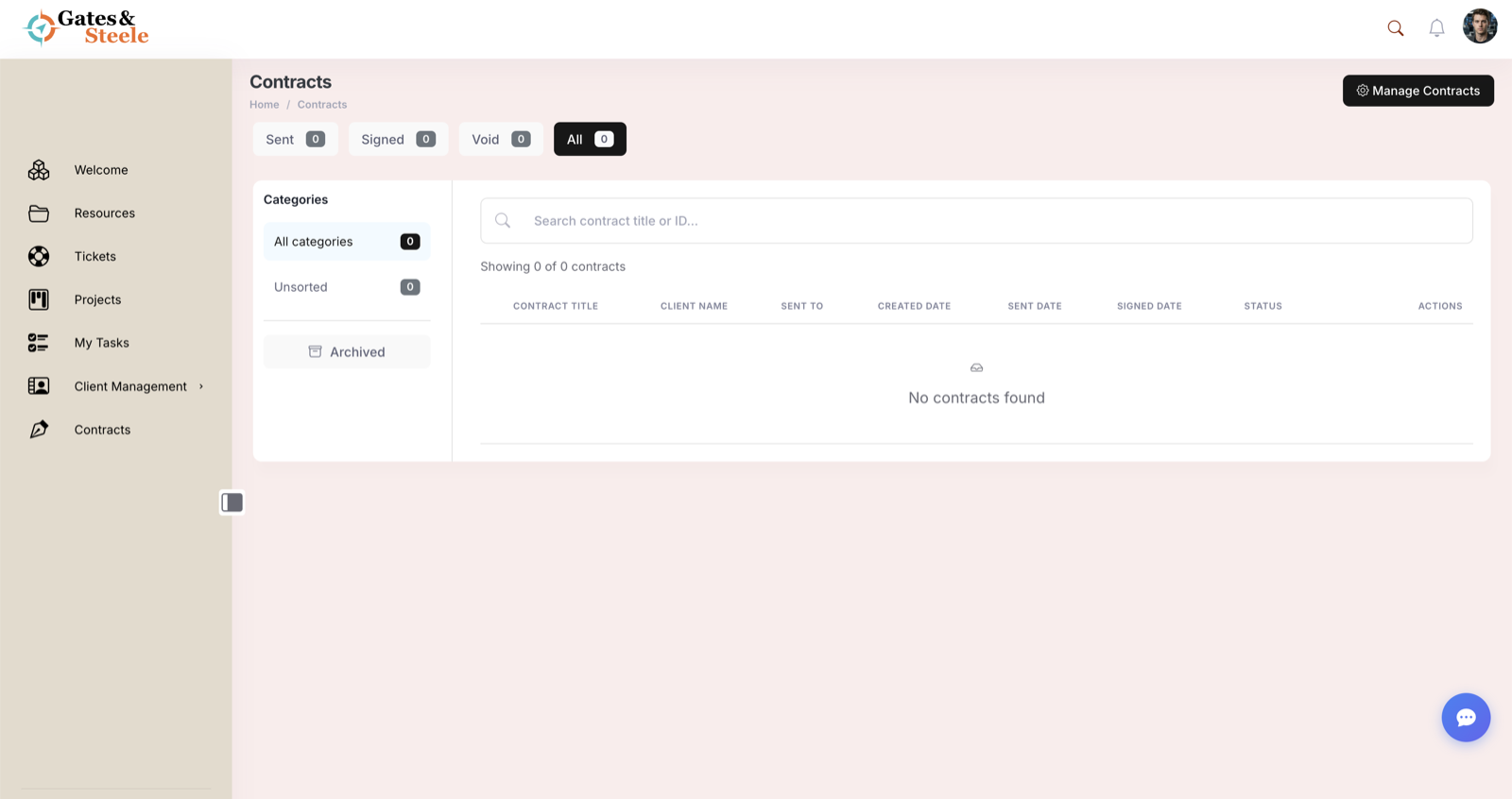
The Contracts dashboard, tracking sent, signed, and voided agreements.
What Contracts Are
A contract in ClientCove is a WordPress custom post type (contract) bound to:
- A PDF template — the actual document to sign
- A set of signature fields — visually placed on the PDF (signature, initial, name, date)
- A client and one or more signers
- A status taxonomy (Draft / Sent / Signed / Void)
- An audit trail stored in dedicated database tables
Contracts can be one-shot (used once for one specific signer) or saved as templates that get copied each time you send them to a new client.
When a recipient signs, ClientCove creates a Contract Submission (contract_submission post type) — the per-signer signed copy with the audit certificate, signature image, and signed PDF.
Quick Glossary
| Term | What it means |
|---|---|
| Contract | A signable document — title, PDF template, signature fields, status |
| Contract Template | A reusable contract (the Save as Template flag is on) — used to spawn submissions for many recipients |
| Submission | A signed copy of a contract, one per signer (contract_submission post type) |
| Signer / Recipient | A user assigned to sign — stored in contract_signers field and the recipients DB table |
| Signature Field | A visually-placed area on the PDF where the signer applies signature, initial, name, or date |
| OTP | One-time passcode delivered by email or SMS to verify a signer's identity before signing |
| Audit Trail | Database log of every signing event: viewed, OTP requested, OTP verified, signed, IP, user agent |
| PDF Hash | SHA-256 fingerprint of the signed PDF — proves the document hasn't been tampered with after signing |
| Visibility | Per-contract — client (any client user can view) or private (only assigned signers) |
The Contracts Page
Open Contracts from the main left sidebar (/contracts/). The page has:
Top toolbar
- Page title + breadcrumb
- Templates view toggle (admin/editor/representative)
- Manage Mode toggle (
?cove=manage) — admin-only enhanced controls - View Submissions link (admin/editor/representative) — switches to the submissions list
- Create Contract button — opens the Create New Contract modal
Left sidebar (admin / editor / representative only)
- Status filters: All, Draft, Sent, Signed
- Categories — terms from the
contract-categorytaxonomy - Client filter dropdown
- Date filters: Sent date range, Signed date range
- Show Archived toggle
Main table
Columns: Title, Client, Status, Sent Date, Signed Date, Actions
Each row's actions vary by status — Sent contracts show Resend, Signed contracts show View Signed PDF, Drafts show Edit and Send.
Search
A search bar above the table searches contract titles, contract IDs, and the contract_title ACF field.
Contracts vs Submissions
ClientCove uses two separate post types:
| Post Type | URL slug | Created When | Lifetime |
|---|---|---|---|
contract | /contract/<slug>/ | You create a contract (manually or via Send from Template) | Persistent — represents the contract definition |
contract_submission | /contract-sub/<slug>/ | A signer completes the signing flow | Persistent — represents one signed copy |
For a 1:1 contract (one signer, no template), the original contract post stores the signed PDF and audit data directly — no submission is created.
For a template-based send (one template, many recipients), each signer gets their own submission post containing their signed PDF, their signature image, their OTP record, and their per-signer audit trail.
Contract Statuses
Contract statuses are stored in the contract-status taxonomy. The default terms:
| Status | Slug | Color cue | Meaning |
|---|---|---|---|
| Draft | draft | Gray | Not yet sent — only visible in Manage Mode |
| Sent | sent | Blue | Sent to signers, awaiting signature |
| Signed | signed | Green | All required signers have signed |
| Void | void | Red | Cancelled or expired before completion |
For multi-recipient contracts, each recipient also has a per-signer status in the wp_clientcove_contract_recipients DB table:
- Pending — sent, not yet viewed
- Viewed — signer has opened the contract page
- Signed — signer completed the OTP + signature flow
- Declined — signer rejected the contract
- Expired — past the expiry deadline without signing
The contract-level status flips to Signed only when all recipients have signed.
The Lifecycle
Most contracts move through these stages:
- Create — admin builds the contract: title, PDF, message, signers, signature fields
- (Optional) Save as Template — flag for repeat use
- Send — recipients get an email with a link to the contract
- View — recipient opens the link, status flips to "Viewed"
- OTP request — signer hits Sign, ClientCove sends an OTP via email or SMS
- OTP verify — signer enters the code; verification logged with timestamp + IP
- Sign — signer draws signature in browser, applies to the placed fields, ClientCove generates the signed PDF
- Hash & store — SHA-256 hash of the signed PDF stored, audit trail finalized
- Notify — sender gets an email confirming the signature
- (Optional) Archive — admin archives the contract once filed
Rejected contracts log the rejection reason, who rejected, and when. Expired contracts auto-flip to a void or expired state based on the submission's expiry deadline.
E-Signature System
ClientCove ships with a browser-based E-Signature system — no Adobe Sign or DocuSign account required.
Key features:
- Browser-based PDF signing — signers draw their signature directly in the browser
- OTP verification — email or SMS one-time passcode confirms signer identity
- SHA-256 integrity verification — hash of the signed PDF is stored, can be re-verified later to prove the file wasn't altered
- IP address logging — recorded with each signature event
- Audit trail database —
wp_ccesign_auditstable records every event with timestamp + metadata - Cloud storage — signed PDFs stored in Google Cloud Storage (or other configured cloud provider)
- No external dependencies — runs entirely on your portal infrastructure
OTP delivery method (email vs SMS) is configurable per contract via the esign_otp_method field. Email is the default; SMS requires a configured Twilio integration.
The system is configured globally in Settings → Contracts (E-Signature settings) and per-contract in the contract editor.
Adobe Sign integration is also present in the codebase (the
adobe_agreement_idfield,/adobesign/API calls). It's an optional fallback if you prefer Adobe's signing infrastructure over the built-in system; most deployments use the built-in E-Signature.
Where to start: New users typically follow this path — create one contract from scratch to learn the flow, save it as a template once it's polished, then use Send from Template to deliver it to multiple clients without re-building the field placement each time.