Client Management Overview
The Clients section is the customer record at the center of your portal. Every project, ticket, contract, resource, location, asset, and invoice in ClientCove links back to a client — so getting the client list right is the foundation everything else sits on.
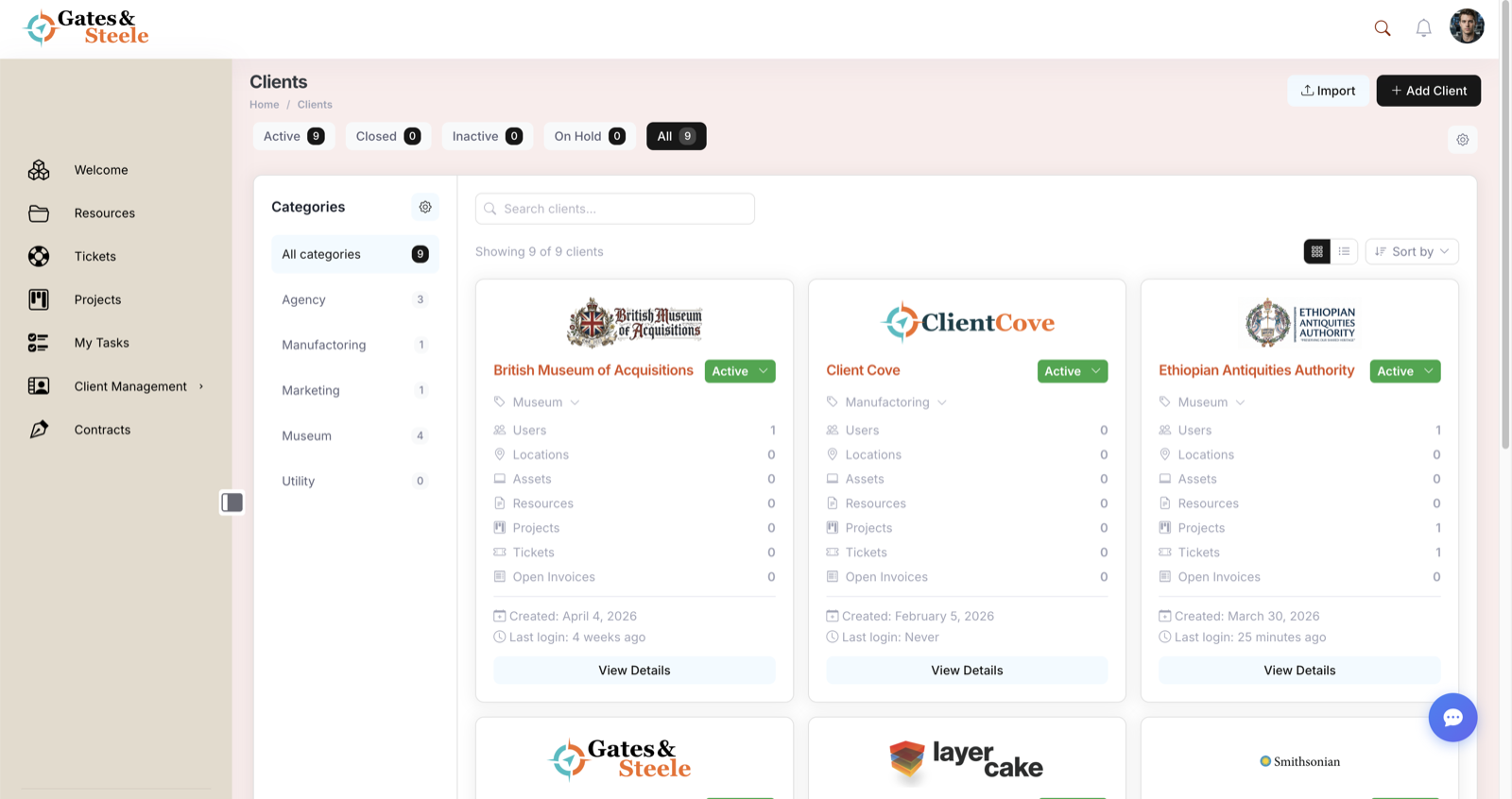
The Clients directory — every client as a card with status, contacts, and linked work.
What Clients Are
A client is a WordPress custom post type (client) representing one customer company. Each client has:
- A name (the company name — used as the post title)
- A logo (PNG or JPG, recommended 250 × 125 px)
- A description (free-form notes)
- A status (Active / On Hold / Inactive — extensible via the
client-statustaxonomy) - A category (taxonomy term in
client-category) - One or more addresses (street, city, state/province, country, zip — with one optionally flagged as billing)
- A billing contact (a designated user from the client's contacts)
- Contacts — users assigned to the client via the
assign_to_clientuser-meta field - A complete history of related content: projects, tickets, contracts, resources, locations, assets, invoices
Clients live at /client/<slug>/ and the list page is at /clients/.
Quick Glossary
| Term | What it means |
|---|---|
| Client | A customer company record — client custom post type |
| Contact | A WordPress user assigned to a client via assign_to_client user-meta |
| Status | Term from the client-status taxonomy (Active / On Hold / Inactive by default) |
| Category | Term from the client-category taxonomy — for grouping clients (e.g., "Enterprise", "SMB", "Pro Bono") |
| Billing Contact | One designated client user — the primary recipient for invoices |
| Account Manager | A team member (admin / editor / representative) responsible for the client (assigned via the same assign_to_client field, but with internal role) |
| Pending Invite | A user record created by import or manual add but not yet activated by the contact |
| Workspace | The single-client view at /client/<slug>/ — shows all related content in tabs |
The Clients Page
Open Clients from the main left sidebar (/clients/).
Access: Administrators and Editors only. Other roles get an "Access Restricted" notice.
The page has:
Top toolbar
- Page title + breadcrumb (Home → Clients)
- Import button — opens the bulk CSV import modal
- Add Client button — opens the Add Client modal
Status filter tabs
A horizontal row of filter buttons, one per visible client status. Each shows a count badge:
- Active (count)
- On Hold (count)
- Inactive (count)
- All (count)
- A gear icon to Manage Statuses (admin/editor only)
Statuses can be hidden from the filter row by setting hide_from_filter on the status term.
Left sidebar (categories)
- All categories with count
- One row per
client-categoryterm with count - A gear icon to Manage Categories
Search bar
Above the client grid — searches the client title (post_title). Submit clears with the X button when active.
Controls header
- "Showing X of Y clients" status text
- View toggle — Grid or List
- Sort by dropdown — Client Name / Date Created / Users / Status
Main content
The grid or list view of clients (see Grid vs List View below).
Client Statuses
ClientCove ships with three default statuses:
| Status | Slug | Default | Meaning |
|---|---|---|---|
| Active | active | Yes | Currently engaged client |
| On Hold | on-hold | Yes | Engagement paused — won't show in dashboard rollups by default |
| Inactive | inactive | Yes | Former client — kept for history |
Statuses are stored in the client-status taxonomy, so they're fully extensible. Add custom statuses via Manage Statuses (gear icon next to the filter tabs):
- Add new status — name, slug, description
- Hide from filter — toggle to keep a status in the database but hide its tab from the filter row (useful for archive-style statuses)
- Edit existing status names and descriptions
- Delete statuses (clients with that status fall back to "Active")
Maximum 8 statuses show in the filter row at once. Past 8, use the gear menu to manage which appear.
Client Categories
Categories give you a second axis of organization, independent of status. Common patterns:
- By tier — Enterprise / Mid-Market / SMB
- By industry — Healthcare / Legal / Construction
- By relationship — Active Account / Prospect / Partner
- By region — North America / EMEA / APAC
Categories are stored in the client-category taxonomy (hierarchical, so you can have nested categories).
Manage them from the Manage Categories gear icon in the sidebar.
Grid vs List View
Toggle between two display modes with the view buttons:
Grid view (default)
- Card-based — one card per client
- Logo, name, status badge, category, contact count, last login
- Optional location count and project count when those features are enabled
- Click anywhere on the card to open the client workspace
- Best for visual scanning and reaching out to clients you recognize by logo
List view
- Dense table with sortable columns
- Columns: Logo, Name, Status, Category, Users, Last Login, Created, Actions
- Best for sorting by date / activity, scanning many clients at once
The view choice is preserved in the URL (?view=grid or ?view=list) so it persists across page loads and shares.
Why Clients Are the Hub
The client record is the integration point for nearly every other feature in ClientCove. Each of these features pulls "the client" as a required or optional field:
| Feature | How it links to a client |
|---|---|
| Projects | the_client field — a project is owned by one client; client users see all their projects |
| Tickets | Tickets are filed by a client user; admins filter ticket queues by client |
| Contracts | The recipient blocks in Send-from-Template scope each submission to a client |
| Tasks | task_client_id field — for time-by-client reports and inbound email scoping |
| Resources | Folders bind to a client (Client Folders); assigned client users see them |
| Locations | client_location field — physical sites belong to a client |
| Assets | Equipment / hardware is tracked per client |
| Invoices | Sent to a client's billing contact |
| Messages | Conversations are scoped to a client; users only see messages within their client |
Because of this central role, the order of operations when setting up a new portal is:
- Create your clients first (or import them)
- Add contacts (users) to each client
- Then start creating projects, sending contracts, filing tickets, etc.
Without a client record, most of the other features have nothing to attach to.
The Clients page is admin/editor only. Client users themselves don't see a "list of clients" — they only ever interact with their own client through the workspaces of projects, tickets, contracts, etc. that belong to them.